
Record Picker · Practical guide
Import a Discogs collection
Move your Discogs collection into Record Picker with a CSV export. Start with a small sample so you can check the destination, editions and proposed changes before importing everything.
1. Request your Discogs export
In your Discogs collection, open the settings menu and choose Export My Collection. On the export page, select Collection and Request Data Export. Discogs prepares the file and notifies you when it is ready. Download the CSV and keep the original unchanged.
2. Protect your existing collection
Before a large import, create a dated backup or export of your existing Record Picker collection and check that you can find it. Work on a copy of the Discogs CSV if you edit it. A Discogs CSV is not a complete backup of your Record Picker data.
3. Choose the destination and review the preview
Open CSV import in Record Picker and select your file. Choose your owned collection or your wishlist deliberately. Recognized Discogs columns can be mapped automatically; review the column mapping if the app asks you to, especially artist, title, year and format.
Before confirming, read the preview: additions, updates, records already identical and similar editions to add. Check the proposed changes rather than assuming every row will create a new record. Similar album titles do not prove that two records are the same edition or physical copy.
4. Check a few albums before importing the rest
Use a small sample first, then compare the imported artists, titles, editions and destination with the original CSV. If the result is wrong, stop and review the file and preview before continuing. If all values appear in one column, check the CSV separator. Avoid repeatedly confirming the full import while investigating a mismatch.
After the import
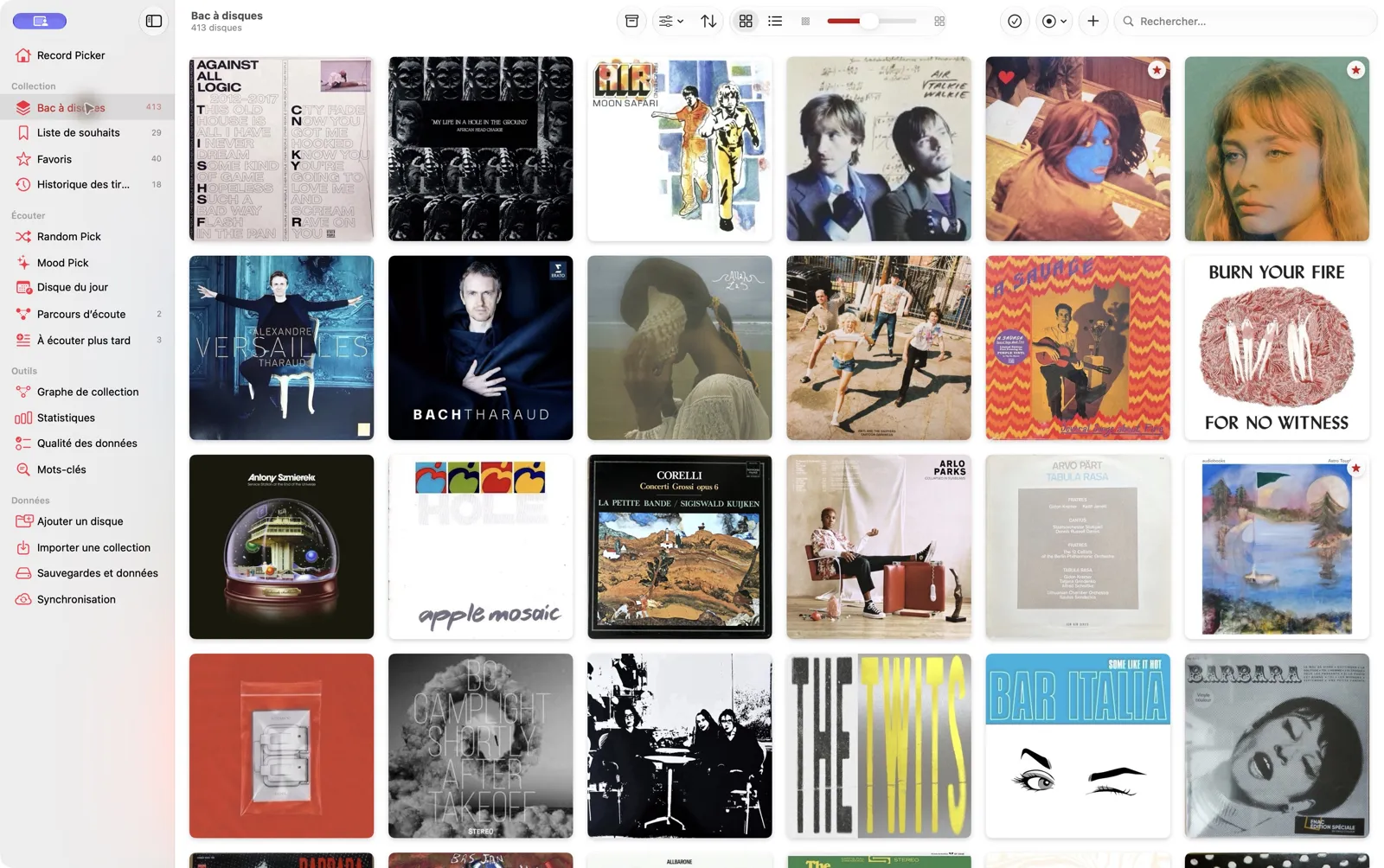
Check that your albums appear in the intended list. Keep the original CSV and your dated backup, then use the guides below to back up your collection, choose your next record or rediscover albums you have not played recently.
Continue with your collection
Back up your collection · Choose a record without going in circles · Rediscover forgotten albums